Hey there! As a supplier of DTF ink for the Epson XP 15000, I've seen my fair share of questions about adjusting ink density. It's a crucial aspect of getting high - quality prints, so today, I'm gonna walk you through how to do it right.
First off, let's understand why ink density matters. When you're using DTF ink with the Epson XP 15000, the right ink density ensures that your prints are vibrant, sharp, and durable. If the ink is too thin, your colors will look faded, and the design might not transfer well onto the fabric. On the other hand, if it's too thick, you could end up with blurry lines, clogged printheads, or an uneven transfer.
Understanding the Basics of Ink Density
Ink density is basically how much ink is being deposited onto the printing surface. When it comes to DTF ink, it's affected by a few factors such as the type of ink you're using, the settings on your Epson XP 15000 printer, and the quality of the transfer film and fabric.
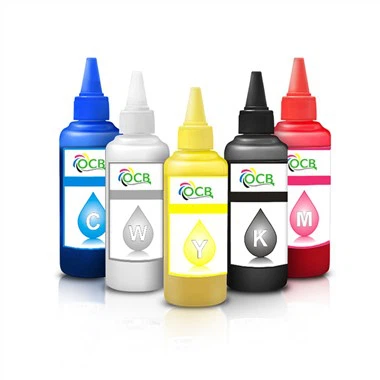
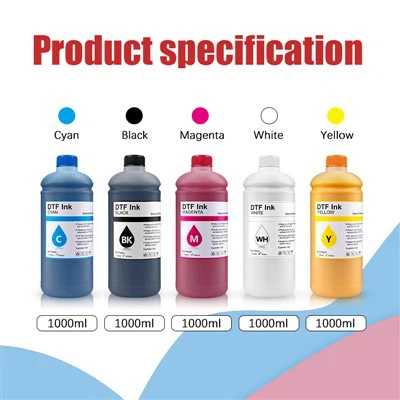
We offer different types of DTF ink for the Epson XP 15000, like the 250ML Film Transfer DTF Textile Ink and the 500ML Film Transfer DTF Textile Ink. These inks are formulated to work well with the Epson XP 15000, but you still need to adjust the density to get the best results.
Factors Affecting Ink Density
Printer Settings
The Epson XP 15000 has a bunch of settings that can impact ink density. The print quality setting is a big one. If you set it to a high - quality mode, the printer will deposit more ink, resulting in a higher ink density. However, this also means longer printing times. On the other hand, a lower - quality setting will use less ink but might give you less vibrant prints.


You can also play around with the ink volume setting. Some printers allow you to increase or decrease the amount of ink that's ejected per drop. If you're getting prints that are too light, try increasing the ink volume. But be careful not to go overboard, as it can lead to clogging.
Ink Type and Quality
Not all DTF inks are created equal. The quality of the ink can have a huge impact on its density and the final print. Our inks are formulated to have the right consistency and color saturation. For example, the Ocbestjet DTF Ink For Epson 1390 1400 1430 L1800 Printer is known for its excellent color reproduction and consistent density.
If you're using a low - quality ink, it might be too thin or too thick right out of the bottle. In such cases, you may need to do more adjustments to get the desired ink density.
Transfer Film and Fabric
The type of transfer film and fabric you use can also affect ink density. Some transfer films absorb ink better than others. If you're using a film that doesn't absorb ink well, you might need to increase the ink density to ensure a good transfer.
Similarly, different fabrics have different absorbency levels. A more absorbent fabric will soak up more ink, so you might need to adjust the density accordingly. For example, cotton fabrics tend to be more absorbent than polyester, so you may want to use a slightly higher ink density when printing on cotton.
How to Adjust the Ink Density
Step 1: Do a Test Print
Before making any major adjustments, it's always a good idea to do a test print. Print a sample design on a piece of transfer film and transfer it to a scrap piece of fabric. This will give you a baseline to work from. Look at the colors, sharpness, and overall quality of the print. If the colors are too light, you'll need to increase the ink density; if they're too dark or blurry, you'll need to decrease it.
Step 2: Adjust Printer Settings
As mentioned earlier, the printer settings are a great place to start. If your test print is too light, try increasing the print quality setting. You can also increase the ink volume if your printer allows it. Make small adjustments at a time and do a new test print after each change.
If your print is too dark or blurry, decrease the print quality or the ink volume. Again, make small changes and test until you get the right density.
Step 3: Check the Ink
If you've adjusted the printer settings and you're still not getting the right ink density, it could be an issue with the ink itself. Check the ink level in the cartridges. If it's low, the ink might be flowing unevenly, which can affect density. You may need to refill or replace the cartridges.
Also, make sure the ink hasn't been sitting for too long. Over time, ink can thicken or separate, which can lead to inconsistent density. If you suspect this is the case, gently shake the ink cartridges to remix the ink.
Step 4: Consider the Transfer Process
The transfer process can also impact the final appearance of your print. Make sure you're using the right temperature and pressure when transferring the design to the fabric. If the temperature is too low, the ink might not transfer properly, making the print look lighter. If it's too high, the ink could spread and make the print look blurry.
Troubleshooting Common Ink Density Issues
Faded Prints
If your prints are coming out faded, first check the printer settings. Increase the print quality and ink volume if possible. Also, make sure the ink cartridges are full and the ink is flowing properly. If the problem persists, it could be an issue with the transfer film or fabric. Try using a different film or test the transfer on a different type of fabric.
Blurry Prints
Blurry prints are often caused by too much ink. Decrease the print quality or ink volume in your printer settings. Another possible cause is a clogged printhead. You can try running a printhead cleaning cycle on your Epson XP 15000 to clear any blockages.
Uneven Ink Distribution
Uneven ink distribution can make parts of your print look lighter or darker than others. This could be due to a problem with the ink cartridges or the printhead. Check the cartridges for leaks or blockages. If the issue is with the printhead, you may need to do a deep cleaning or replace it if necessary.
Conclusion
Adjusting the ink density when using DTF ink with the Epson XP 15000 is all about finding the right balance. It takes a bit of trial and error, but once you get it down, you'll be able to produce high - quality, vibrant prints every time.
If you're having any trouble with adjusting ink density or if you're interested in our DTF ink products, feel free to reach out for a chat. We're here to help you get the most out of your Epson XP 15000 printer and our DTF inks.
References
- General knowledge from years of experience as a DTF ink supplier.
- Technical manuals of Epson XP 15000 printer.